
Team access, "Who did what" log and AI helpers in MJX CRM
Control which enquiries your staff can see, read the audit log of bulk actions, and see every AI helper in MJX CRM with where to switch it on.
This page covers three things in MJX CRM: what each role and permission lets a person do, the "Staff see…" privacy switch with the Who did what log, and the AI helpers page that lists every AI agent in the CRM.
#Roles in the CRM
| Role | In the CRM |
|---|---|
| Owner | Everything: every enquiry (lead for a business), every Setup screen, API keys, deleting records, the audit log |
| Admin | The same as the Owner inside the CRM, even when the admin has also been given a job |
| Staff (counsellors, salespeople, teachers, front desk) | What their job's CRM permissions allow (see below). A staff member who has not been given a job yet keeps the usual staff access: work enquiries — add, call, message, note, book visits, tasks — but no Import & export and no Setup screens. |
#What each CRM permission allows
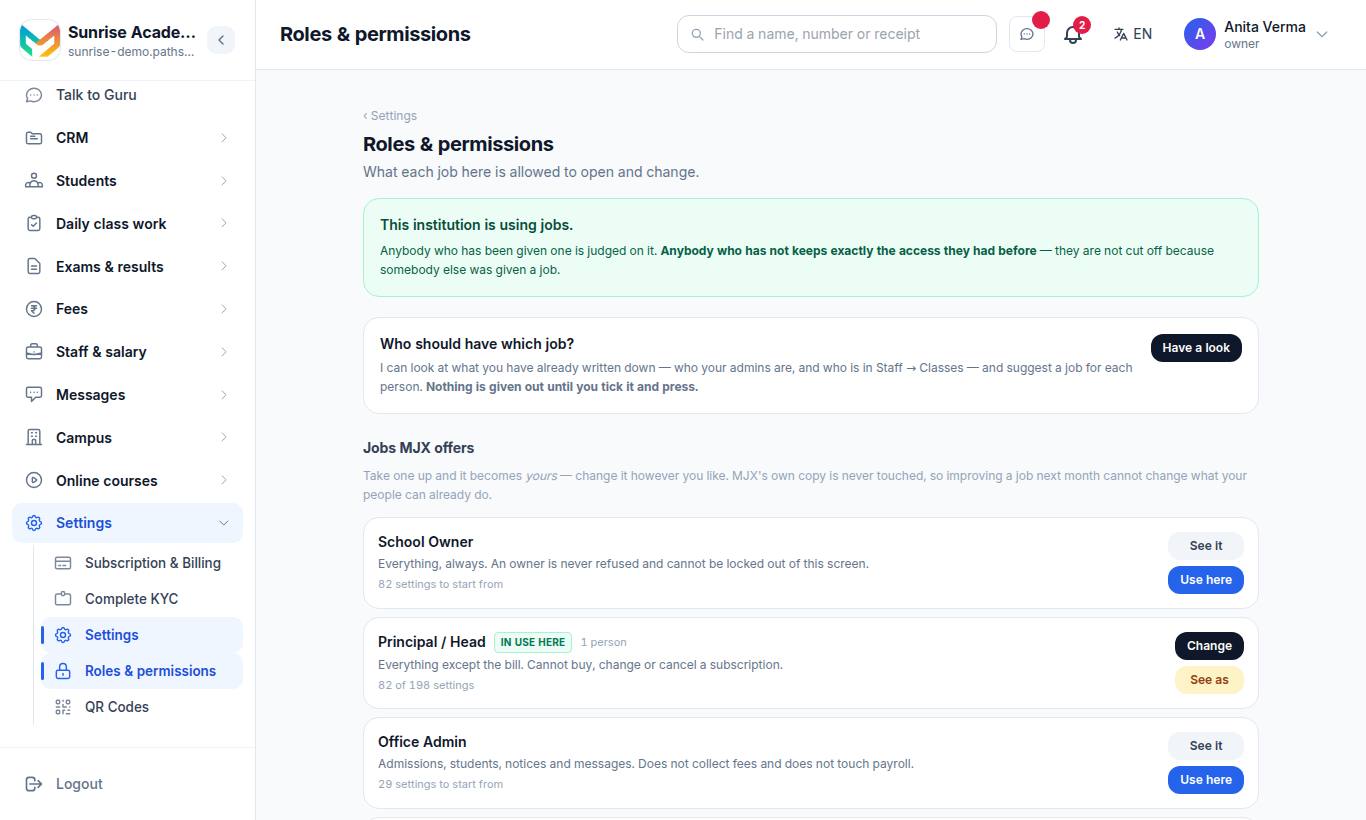
Give a job its permissions under Sidebar › Settings › People & roles › Roles & permissions, then give the job to a person on the People screen. The permission is checked on the website, on every CRM address typed by hand, in the API the CRM pages use and in the MJX CRM app — not only in the menu.
| Permission | What it opens |
|---|---|
| View Inquiries | The enquiry list and each enquiry's page, CRM home, My work, Contacts, Accounts, Deals and the other record lists, Tasks, Calls and Meetings lists, Documents, Ask AI questions, AI helpers |
| Create Inquiry | Adding an enquiry by hand, and adding accounts, deals, quotes and other records |
| Edit Inquiry | Changing an enquiry's status, stage, fields and tags, WhatsApp replies, fee quotes, admitting, putting enquiries on an auto message, changing many at once, approving an Ask AI action |
| Delete Inquiry | Deleting enquiries or records, and merging two copies of the same person |
| Assign Inquiry | Giving an enquiry to someone (one or many at once) |
| Manage Notes | Adding, pinning and removing notes |
| Manage Attachments | Adding, renaming and removing files on an enquiry or in Documents |
| Manage Followups | Follow-up dates, tasks and meetings |
| Call an Enquiry | Click to call, logging a call, and asking the AI caller to ring an enquiry |
| Import Enquiries | Import from Excel |
| Export Enquiries | Export to Excel — a staff member's file holds only the enquiries their own list shows |
| View Inquiry Dashboard | Reports and Analytics — for a staff member, the counts are of the enquiries and records they can see |
| Manage Inquiries | All of the above |
The Setup screens — Web forms, Where enquiries come from, Auto actions, Auto messages, Follow-up messages, Telephony (click to call and the calling connection) and AI caller settings, Stages & fields, Who did what, API & webhooks, connect AI tools (MCP) — are for the Owner and Admins only, whatever job a person holds.
The sidebar shows a person only the CRM screens they can open: the menu and the screen ask the same question, so a row is never shown that then refuses.
#When someone opens a screen they may not use
A page shows "This screen is not part of your job" with Go back and Take me home. A Setup screen says: "You do not have permission to change the CRM setup. Only the owner or an admin can."
In the app, and in the CRM's own buttons, the answer is a message such as "You do not have permission to add enquiries. Ask an owner to add it to your job on the People screen."
Each refusal is written to Who did what as Was refused a screen or action (who, which permission, which screen — once every 10 minutes per person and screen), so you can see what people tried to open.
#Staff see…
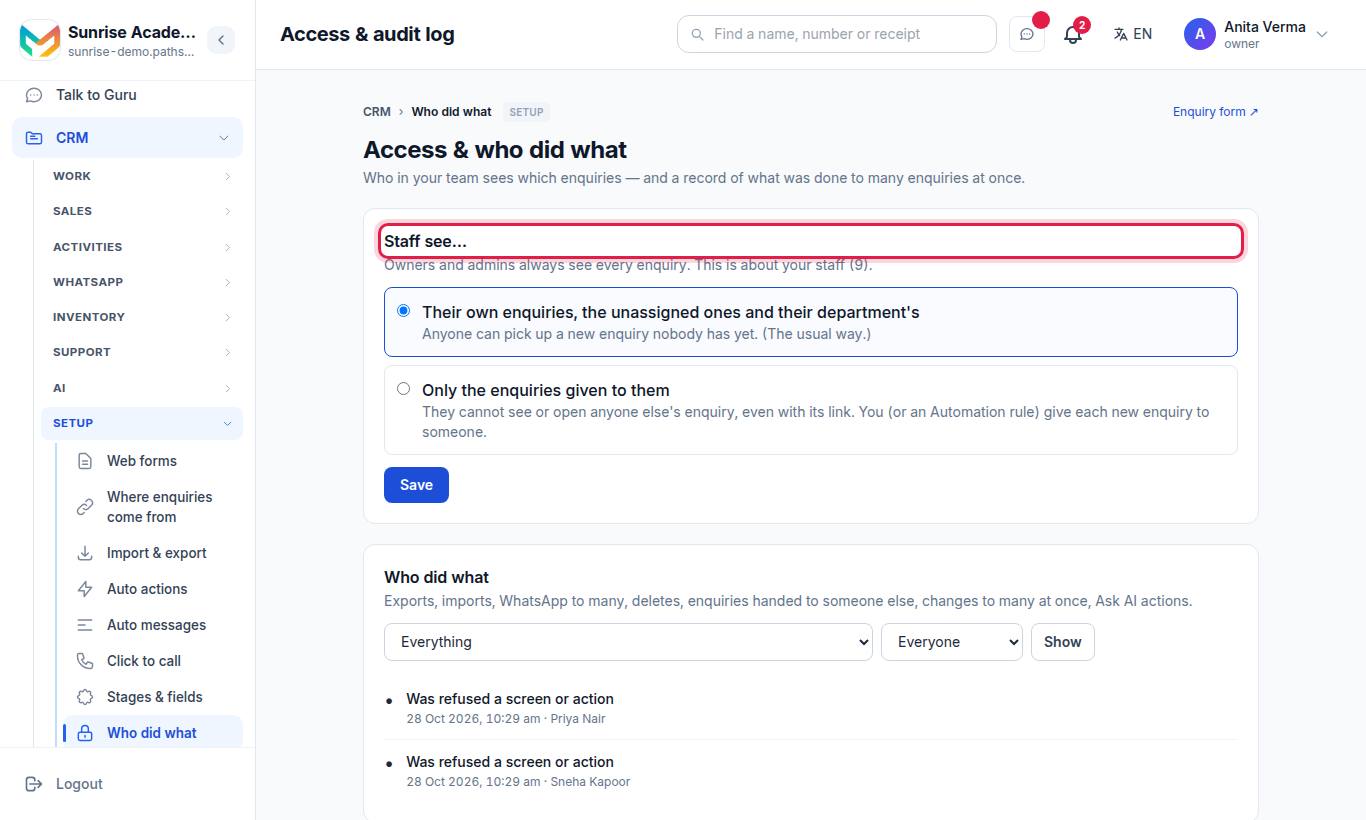
The page Access & who did what starts with Staff see…. Owners and admins always see every enquiry; this choice is about your staff.
| Choice | What staff see |
|---|---|
| Their own enquiries, the unassigned ones and their department's (the usual way) | Anyone can pick up a new enquiry nobody has yet. |
| Only the enquiries given to them | They cannot see or open anyone else's enquiry, even with its link. You (or an Auto action) give each new enquiry to someone. |
Whichever you choose, it applies everywhere a staff member sees enquiries: the list and search, each enquiry's page, Contacts, Documents (files on enquiries), Tasks and Meetings that are not given to anyone, Reports, Analytics, Excel export, Ask AI and the MJX CRM app.
#Steps to change who sees which enquiries
- Open Who did what.
- Pick one of the two choices.
- Press Save.
With Only the enquiries given to them, a staff member who opens someone else's enquiry sees: "That lead is given to someone else. Ask an owner or admin to give it to you." This applies on the website and in the MJX CRM app.
This switch is on every plan. Only the Owner or an Admin can change it ("Only an owner or admin can change who sees which leads.").
#Who did what (audit log)
The Who did what section records actions that touch many enquiries at once, or change who is billed or what is shared:
| Logged action | Label in the log |
|---|---|
| Export | Exported leads |
| Import | Imported leads |
| WhatsApp to many | Sent a WhatsApp to many |
| Delete | Deleted leads (with how many days they can be brought back) |
| Hand over | Gave leads to someone else |
| Bulk step change | Changed the step of many |
| Bulk tags | Tagged many |
| Access switch | Changed who sees which leads |
| Ask AI | Approved an Ask AI action |
| Calling account | Changed the calling account |
| Duplicates | Merged duplicate leads |
| Admission | Admitted a lead as a student |
| Sequences | Put leads on a nurture sequence |
| Broadcasts | Scheduled a broadcast |
| Lead sources | Changed a lead source |
| Targets | Changed the targets |
| Other records | Deleted a record (account, deal, product, quote, case or campaign) |
| Web forms | Changed a web form |
| Refused | Was refused a screen or action |
Each row shows what was done, how many enquiries, when, and who (click a name to see only that person's actions).
#How to filter the log
- Pick an action in the first list ("Everything" shows all).
- Pick a person in the second list ("Everyone" shows all).
- Press Show. Press Clear to go back.
The newest 200 entries are shown — narrow it with the filters for older ones.
#AI helpers
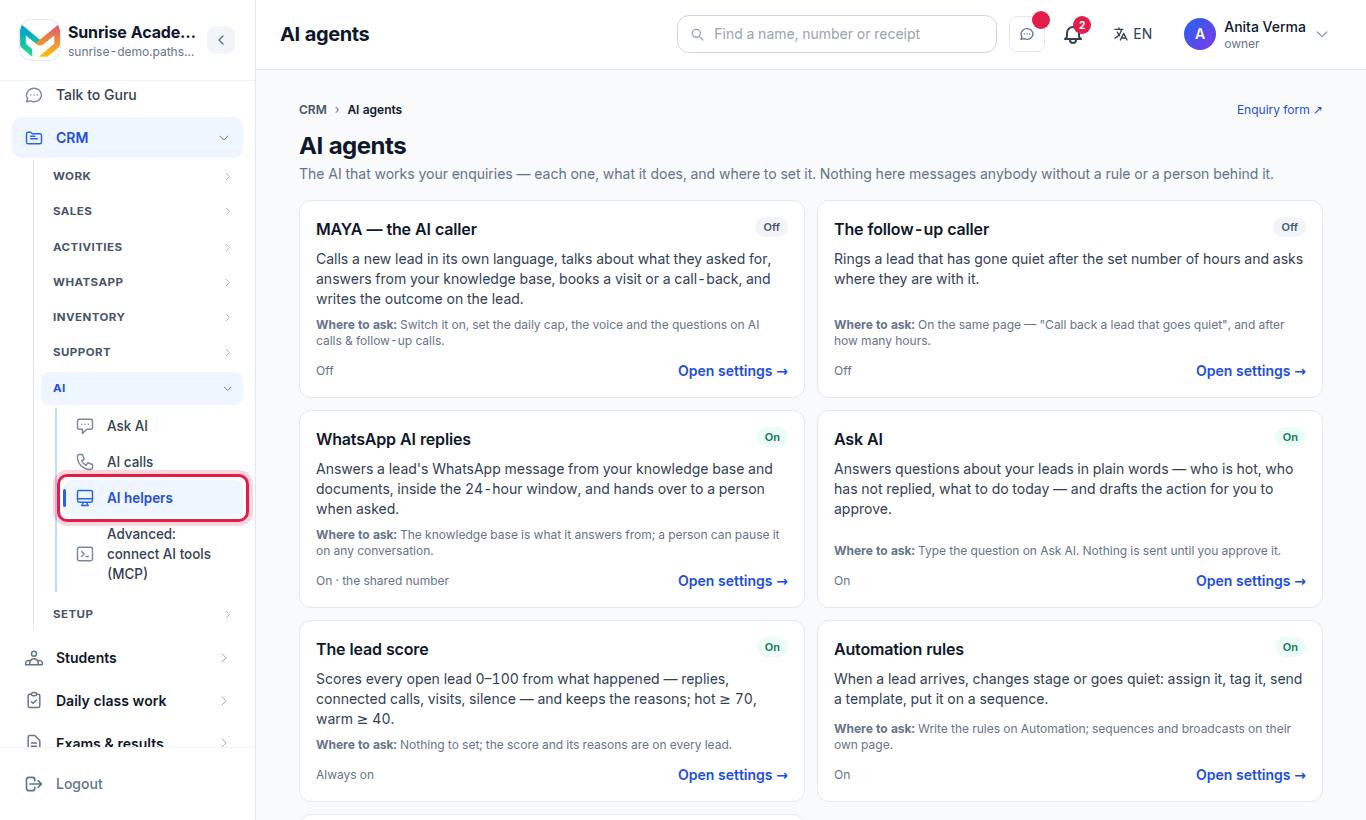
The AI helpers page (Apps › MJX CRM › CRM settings › AI helpers) shows every AI helper in the CRM on one card each: what it does, whether it is On, Off or needs Pro, where to set it, and an Open settings → button (or See MJX CRM Pro →).
| AI helper | What it does | Where to set it | Plan |
|---|---|---|---|
| MAYA — the AI caller | Calls a new lead in its own language, talks about what they asked for, answers from your knowledge base, books a visit or a call-back, and writes the outcome on the lead | AI calls & follow-up calls (daily cap, voice, questions) | Pro |
| The follow-up caller | Rings a lead that has gone quiet after the set number of hours and asks where they are with it | Same page — "Call back a lead that goes quiet" | Pro |
| WhatsApp AI replies | Answers a lead's WhatsApp message from your knowledge base and documents, inside the 24-hour window, and hands over to a person when asked | Knowledge base; a person can pause it on any conversation | Every plan |
| Ask AI | Answers questions about your leads in plain words and drafts the action for you to approve | Ask AI | Pro |
| The lead score | Scores every open lead 0–100 from what happened — replies, connected calls, visits, silence — and keeps the reasons; hot ≥ 70, warm ≥ 40 | Nothing to set | Every plan |
| Automation rules | When a lead arrives, changes stage or goes quiet: assign it, tag it, send a template, put it on a sequence | Auto actions; sequences and broadcasts on their own page | Pro |
| Click to call | Rings your phone and then the lead, and logs the call with its outcome | Telephony | Pro |
"Nothing here messages anybody without a rule or a person behind it."
An AI assistant of your own (Claude, Cursor and others) can also read and record enquiries — see MCP server.
More on each: AI caller, Ask AI, Automation, Calls and telephony.
#Good practice
- Give each counsellor or salesperson their own login — never share one. The log can only tell you who did what if everyone signs in as themselves.
- Check Who did what once a week for exports and bulk messages you did not expect.
- Use Only the enquiries given to them when staff work on commission or when parents' numbers must stay private.
#Questions people ask
Can I stop staff from seeing each other's enquiries?
Yes. On Who did what, choose "Only the enquiries given to them" and press Save. Staff then cannot open anyone else's enquiry, even with its link. This switch is on every plan.
Do owners and admins also lose access?
No. Owners and admins always see every enquiry and every CRM screen.
Are the CRM permissions only about the menu?
No. Each permission is checked on the screen itself, in the CRM's API and in the MJX CRM app. A person without it sees "This screen is not part of your job", even if they type the address.
Which plan has the audit log?
The Who did what record comes with MJX CRM Pro. It is kept on every plan, so the history is already there when you upgrade.
Does the AI send messages by itself?
Only where you set it up — the WhatsApp AI answers people who message you, and the AI caller calls when switched on. Ask AI drafts actions for you to approve.