
Fee heads, fee structures, instalments and late fees
Create fee heads, set class-wise amounts with due days and late fees, and plan monthly, quarterly or custom instalments in Pathshala.
In Pathshala, what a family owes comes from two lists: fee heads (the things you charge for) and fee structures (how much each class pays for each head, when it is due, and the late fee). A collection plan then says in how many bills the year's fees are taken.
#Who can use this?
| Action | Who |
|---|---|
| Open Fee Heads and Fee Structures | Owner, Admin, or staff with Manage Fee Setup (the Accountant role has it) |
| Add, edit, delete heads; save structures and plans | Owner, Admin, or a role with Manage Fee Setup |
| Save a collection plan | Owner, Admin, or a role with the instalment permission |
These screens are on every plan, including Forever Free.
#How to add a fee head
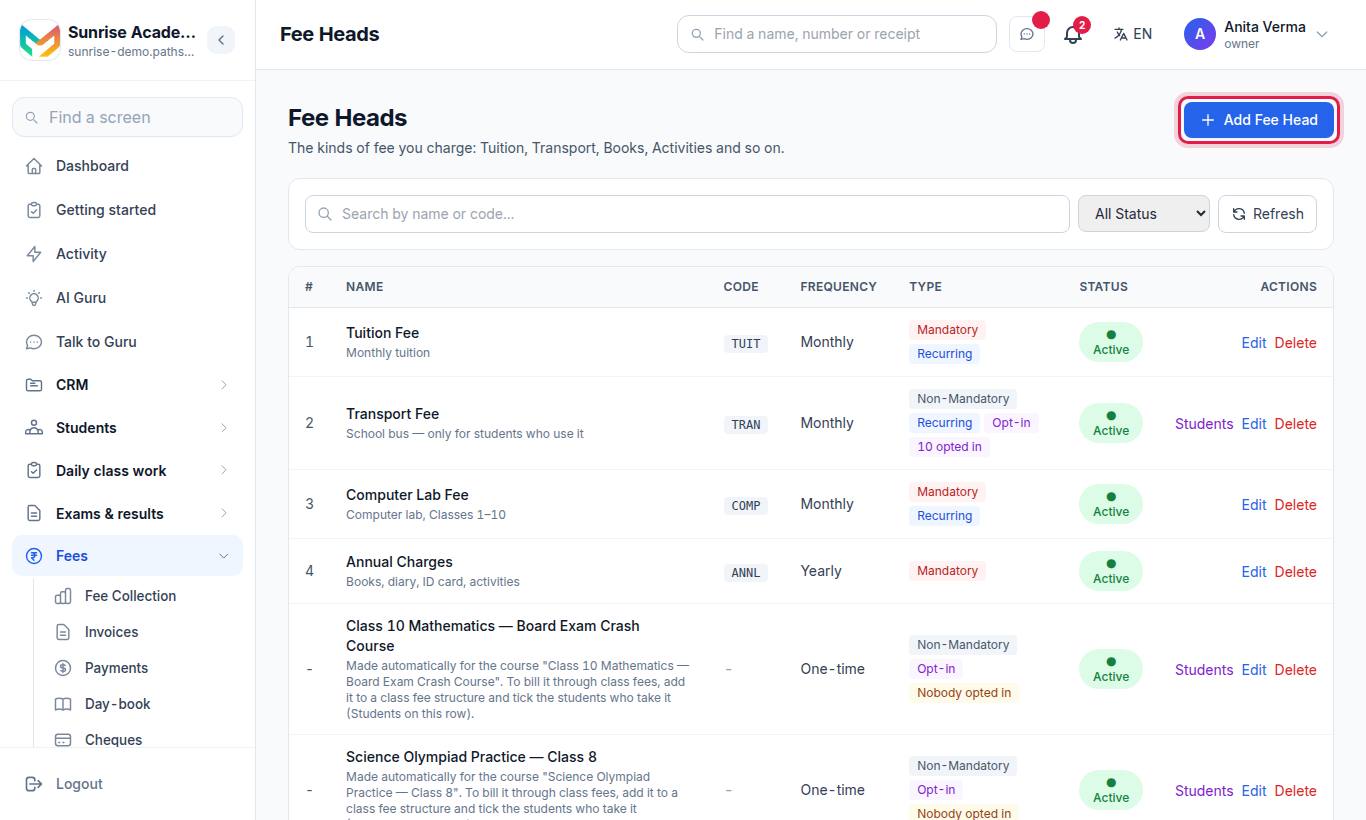
#Steps
- Press Add Fee Head.
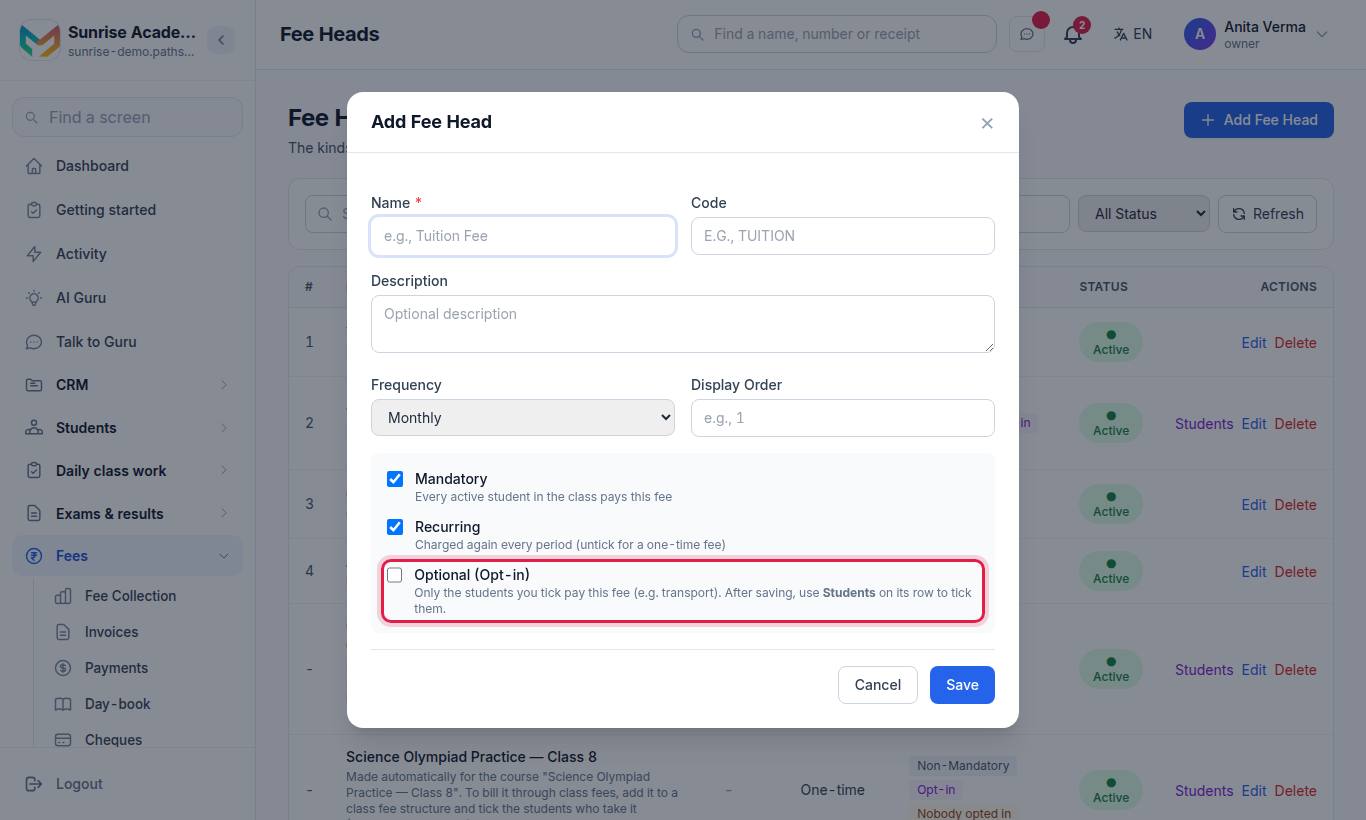
- Type the Name (required), for example Tuition Fee.
- Optionally type a short Code (for example TUITION) and a Description.
- Choose the Frequency (see the table below).
- Optionally set a Display Order — lower numbers appear first on bills.
- Leave or change the ticks: Mandatory (everyone in the class pays it), Recurring, or Optional (Opt-in) (only the students you tick pay it). Ticking Optional (Opt-in) clears Mandatory, and the other way round.
- Press Save.
#What the frequency does
| Frequency | How often the head is charged |
|---|---|
| Monthly | On every monthly bill |
| Quarterly | Once in any 3 months |
| Half-Yearly | Once in any 6 months |
| Yearly | Once in any 12 months |
| One Time | Once ever for that student (for example an admission fee) |
When you raise a monthly bill, a quarterly head that was already billed in the last three months is left out and shown under Skipped items. When you raise an instalment that covers several months, a monthly head is multiplied by the months it covers (for example, a 3-month instalment carries three months of tuition).
#Managing heads
| Control | What it does |
|---|---|
| Search box and All Status / Active Only / Inactive Only | Filter the list |
| Refresh | Reload the list |
| Students | Only on an optional head: tick who takes it, class by class (see below) |
| Edit | Change any field |
| ● Active / ○ Inactive | Switch the head on or off. An inactive head is not offered in Fee Structures |
| Delete | Deletes a head that was never used. A head used in a fee structure is only made inactive |
#Optional (opt-in) fee heads
A head marked Optional (Opt-in) — Transport, Hostel, a lab — is billed only to the students who opted in. A Mandatory head is billed to every active student of the class, as before. Both still need an amount in the class's fee structure.
The row of an optional head shows how many students opted in, or Nobody opted in in amber. Until you tick somebody, nobody is billed for it.
#Tick students from the Fee Heads screen
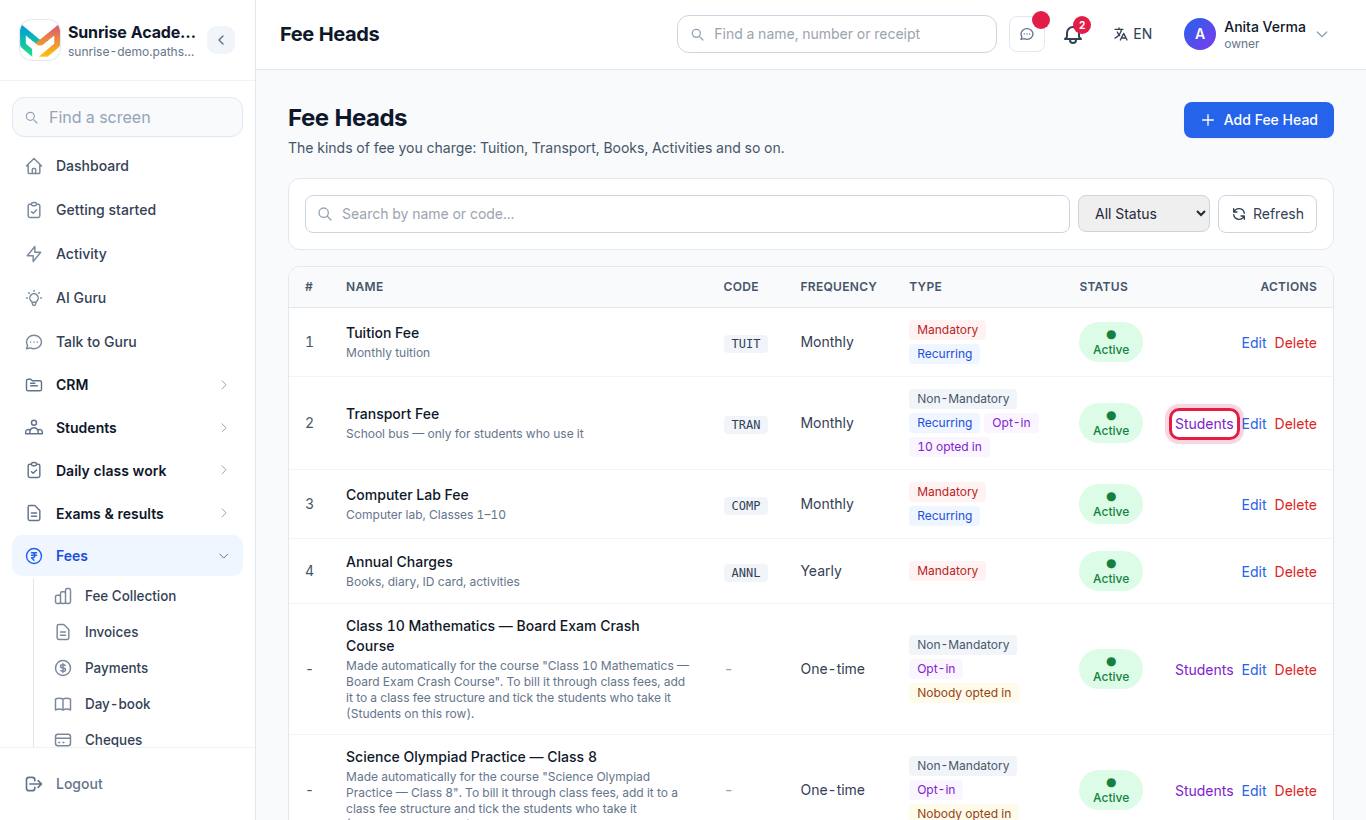
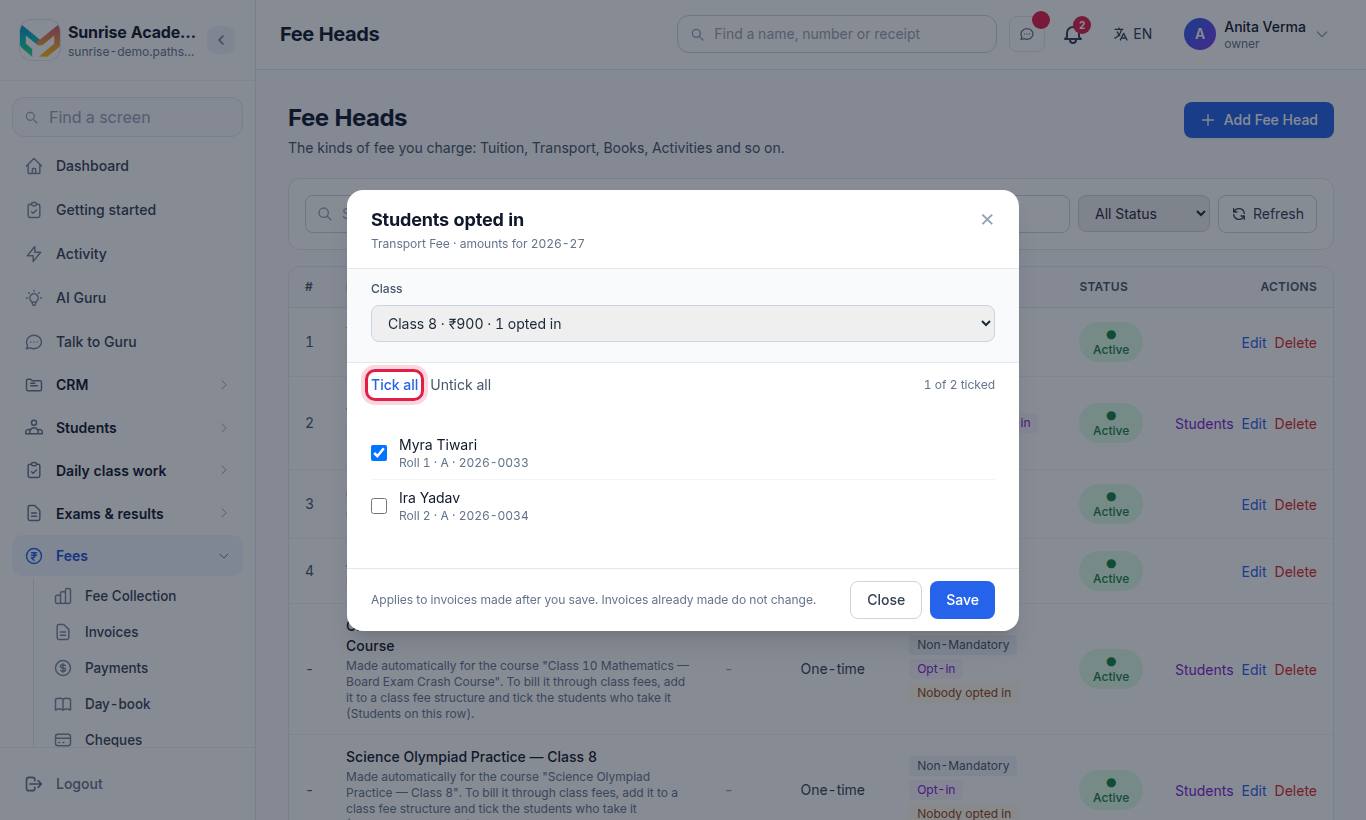
- On the optional head's row, press Students.
- Choose the Class. Each class shows the head's amount this session, or no amount set.
- Tick the students who take it. Tick all and Untick all help with a whole class.
- Press Save.
#Tick from the student's own page
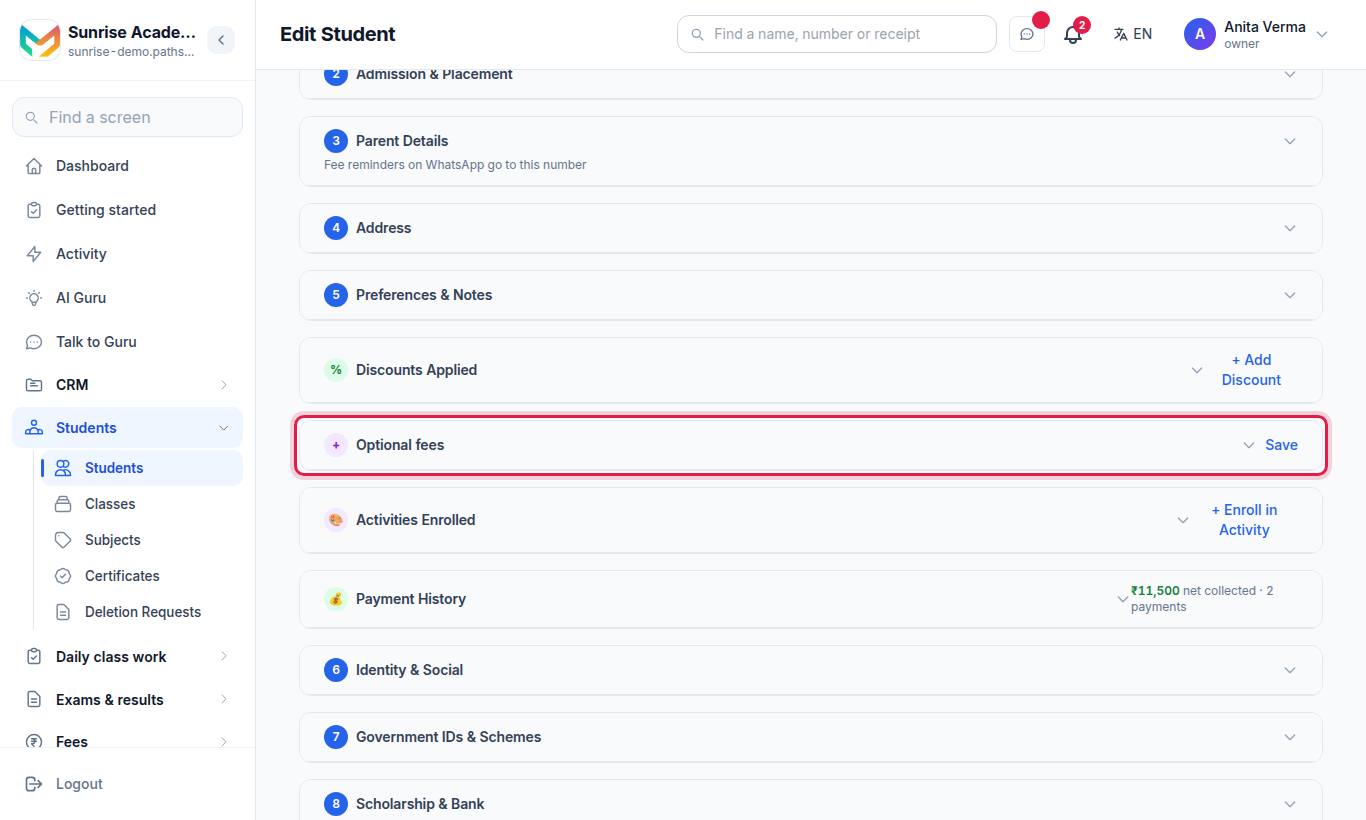
The Optional fees card lists every optional head in the student's class fee structure, with its amount. Tick the ones this student takes and press Save on the card. A head the student is ticked for but that is not billed (no amount in this class, made inactive, or made mandatory again) says why under its name.
Who may tick: the Owner, an Admin, or a role with Manage Fee Setup or Give discounts. Staff without either can see the ticks but not change them. Activities — music class, robotics, a sport — still work through Activities.
#How to set class-wise amounts (fee structure)
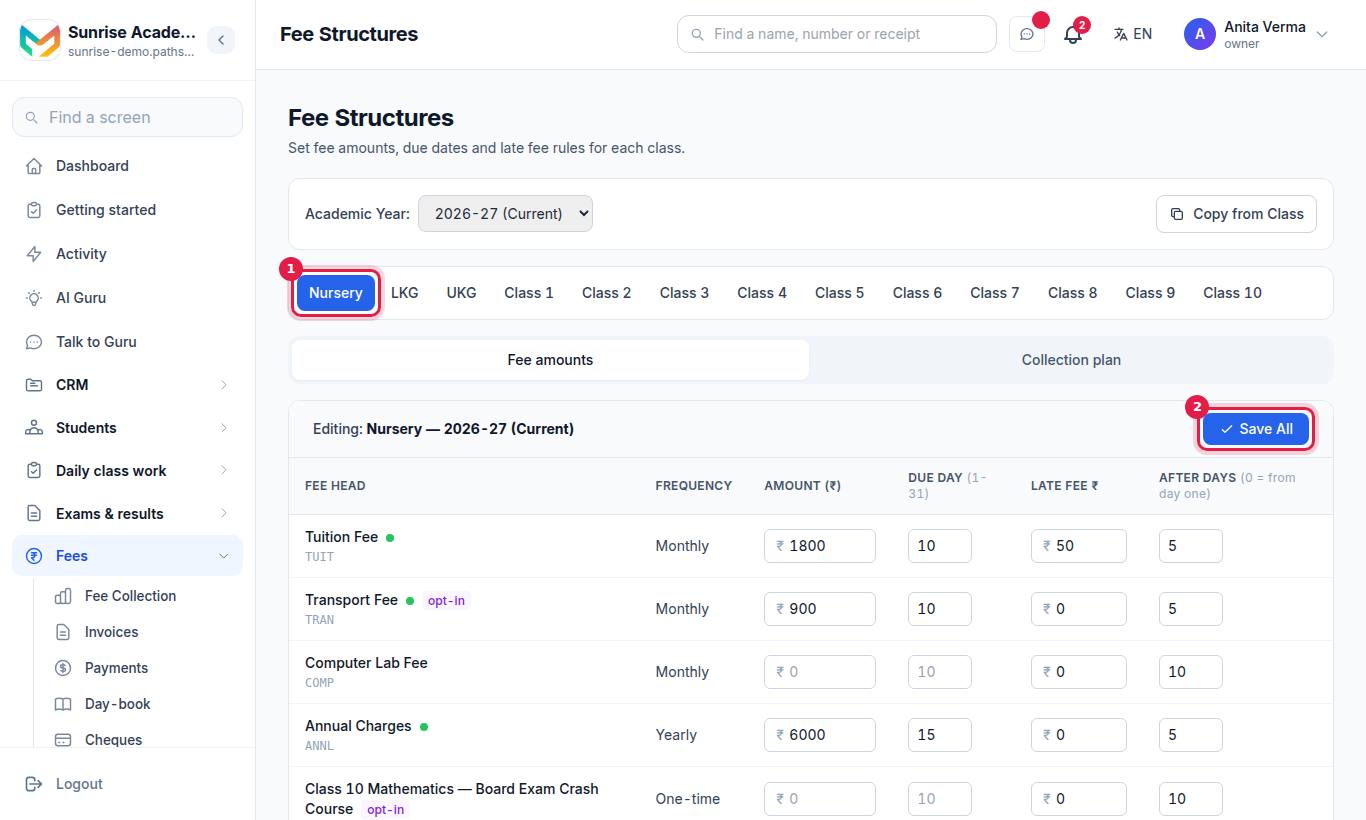
#Steps
- Choose the Academic Year at the top. The current year is marked (Current).
- Press the name of a class. The heading shows Editing: with the class and year.
- Stay on the Fee amounts tab. For each active fee head fill in:
- Amount (₹) — what this class pays for the head each time it is charged.
- Due Day (1-31) — the day of the month the bill is due.
- Late Fee ₹ — the fine if it is paid late (leave 0 for none).
- After Days (0 = from day one) — the grace period after the due date before the late fee applies.
- Press Save All.
Rules worth knowing
- Leaving an amount blank or 0 removes that head from the class.
- If heads on one bill have different due days, the bill takes the earliest of them as its due date.
- The default grace period is 10 days if none is saved.
#Copy a structure to another class
- Press Copy from Class.
- Choose Copy from (source class) and Copy to (destination class).
- Press Copy and confirm.
#How late fees work
- The late fee is worked out when the invoice is generated. If the bill is made after its due date plus the grace days, the late fee of each head is added and the bill shows why (for example "Due date passed by 12 days").
- Invoices already made are not changed later — a bill raised on time does not grow a fine by itself.
- When you generate a single student's invoice, you can tick Waive off / adjust late fee, type a new amount and a reason. The change is written into the invoice notes.
#How to set a collection plan (instalments)
The collection plan says how many bills the year's fees are split into, and when each is due. It is optional: a class without a plan is billed month by month.
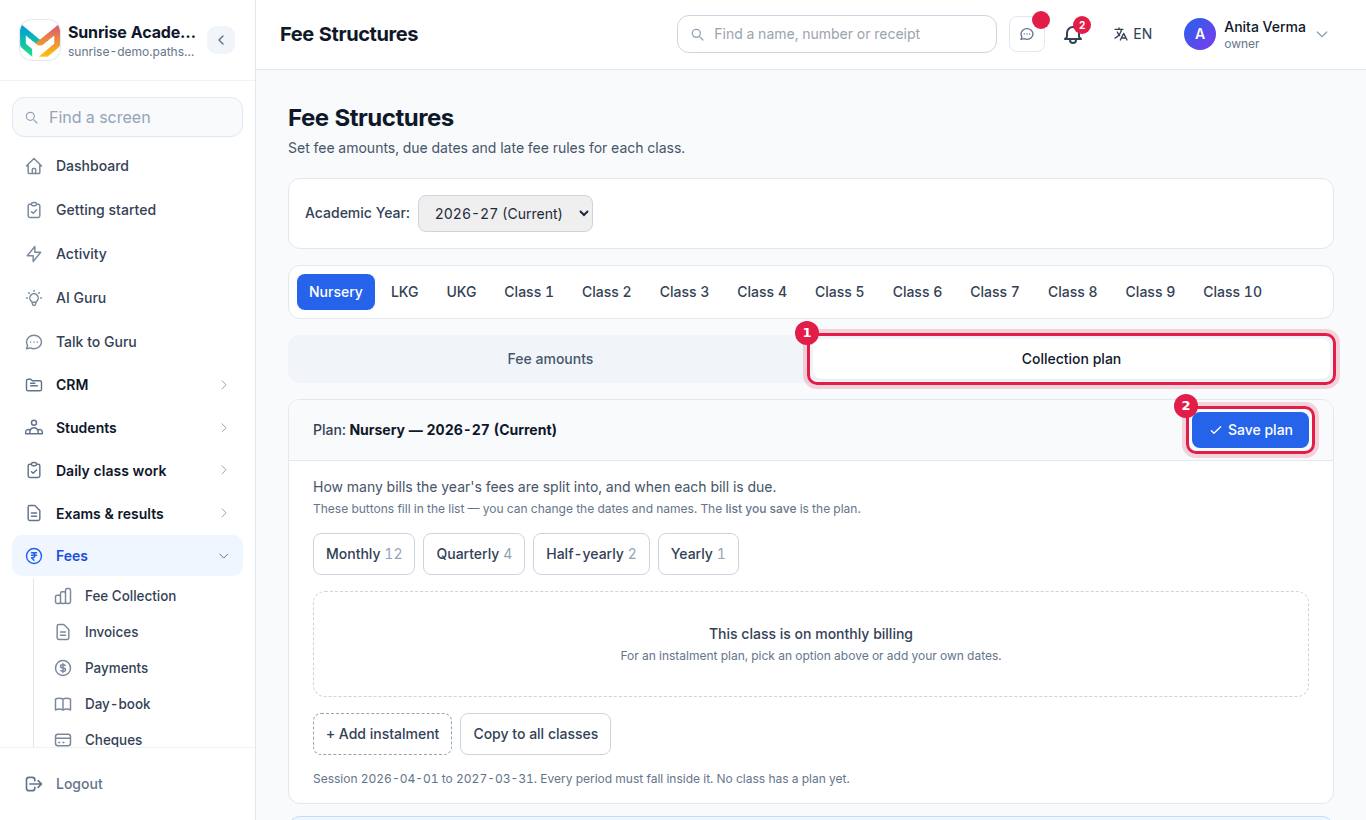
#Steps
- Pick the year and the class, then press the Collection plan tab.
- Press one of the quick-fill buttons: Monthly 12, Quarterly 4, Half-yearly 2 or Yearly 1. They fill the list with names and dates for the session.
- Change any instalment's name, Due date, Covers from and Covers to dates. Use the add-instalment button to add a row, or the remove button on a row to drop it.
- Optionally type an amount on each instalment. Leave every amount empty to bill from the fee list (the months the period covers × the monthly amounts). If you type amounts, type them on every instalment — each bill's total is then that amount, and its lines are adjusted in proportion.
- Press Save plan.
- To use the same plan everywhere, press the copy-to-all-classes button. This overwrites the plan of every other class.
Limits: up to 24 instalments in a year, and every period must sit inside the academic year.
The plan's progress shows on the Fee Collection dashboard as Collection plan — how many instalments have been billed to everyone, per class.
#Tips
- Set up heads once, carefully. Renaming a head later does not change old invoices.
- Use one head per thing a parent might ask about. "Tuition + Lab" in one head makes the bill harder to explain.
- At the start of a new session, the Promote and start the new session screen has a tick Copy this year's fee structure into the new session (only used when the new session has no structure yet). Check the new year's amounts on Fee Structures before you bill. See Promote to a new session.
#Questions people ask
What is a fee head?
A fee head is one thing you charge for, such as Tuition Fee, Transport or Exam Fee. You make the list once and then give each class an amount per head.
How is a late fee added?
Each fee head in a class can carry a late fee and a grace period in days. When an invoice is generated after the due date plus the grace, the late fee is added to that invoice. Existing invoices are not changed later.
Can different classes pay different amounts?
Yes. Every class has its own amounts for each head. Use Copy from Class to start one class from another and then change what differs.
Can I delete a fee head that is already in use?
No. A head used in a fee structure can only be made inactive. A head that was never used is deleted for good.
Do I need instalments?
Only if you do not bill month by month. Without a collection plan, a class is billed monthly from its fee list.
Who pays an optional fee head?
Only the students you tick for it. A mandatory head is billed to every active student in the class; a head marked Optional (Opt-in) is billed only to students ticked under Students on the Fee Heads screen, or under Optional fees on the student's Edit page.
I marked a head Optional but everyone should pay it. What do I do?
Edit the head, untick Optional (Opt-in) and tick Mandatory. From the next invoice it is billed to every active student of the class again. Invoices already made do not change.