
Doubts — learners ask a teacher or the AI
Let learners ask doubts about a course in MJX Learn — to the teacher, with photos, or to the AI on one topic — and answer from one inbox.
A doubt is a question a learner asks about a course. In MJX Learn the learner chooses who answers: your teacher, who reads it in an inbox and replies privately, or the AI, which answers from the topic's own material. Teachers answer from Doubts in the sidebar or the app.
#How to choose who answers
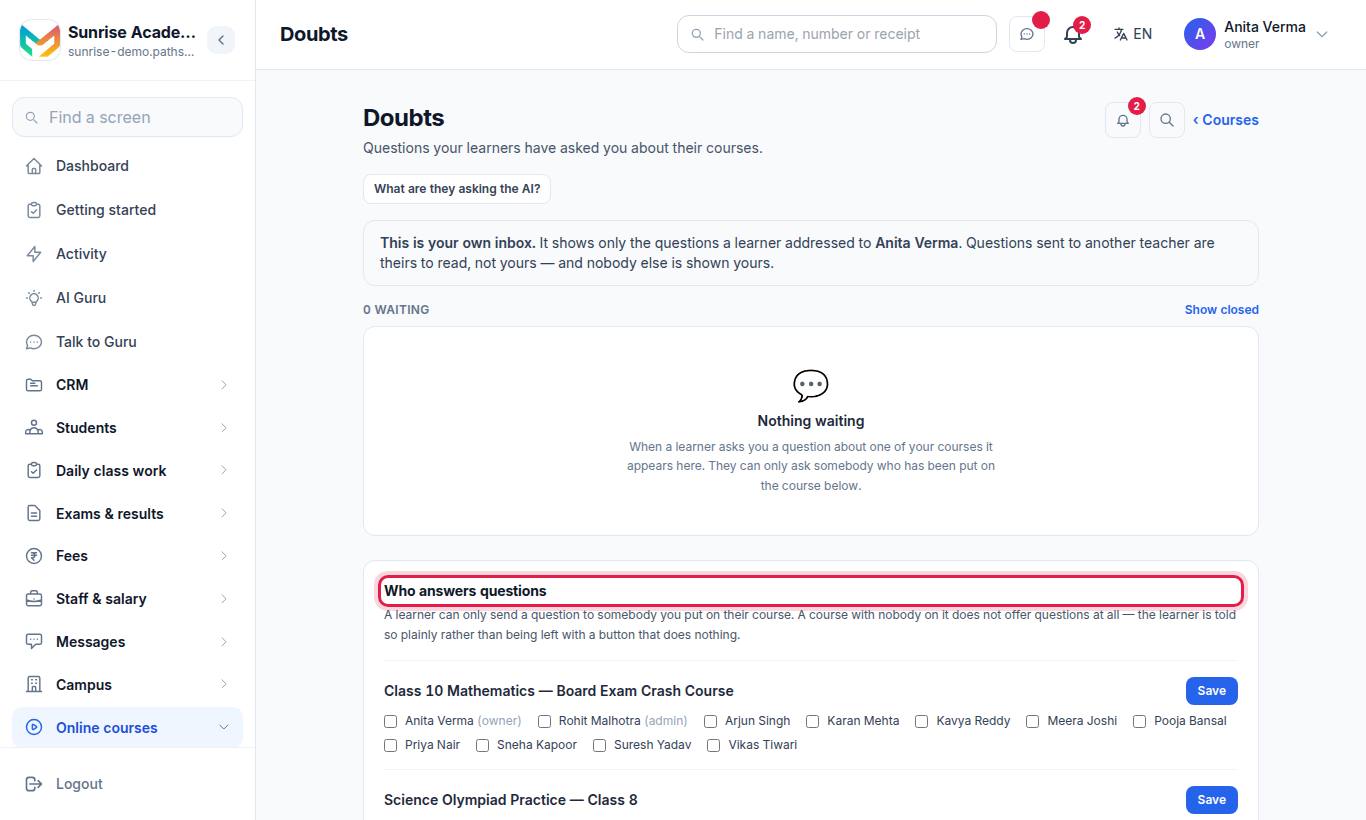
"A learner can only send a question to somebody you put on their course."
- Scroll to Who answers questions.
- Under each course, tick the staff who answer for it.
- Press Save on that course.
This also decides which courses a teacher can see elsewhere in MJX Learn (tests, reviews, assignments, AI questions). Owner and admin only.
#How to answer a doubt
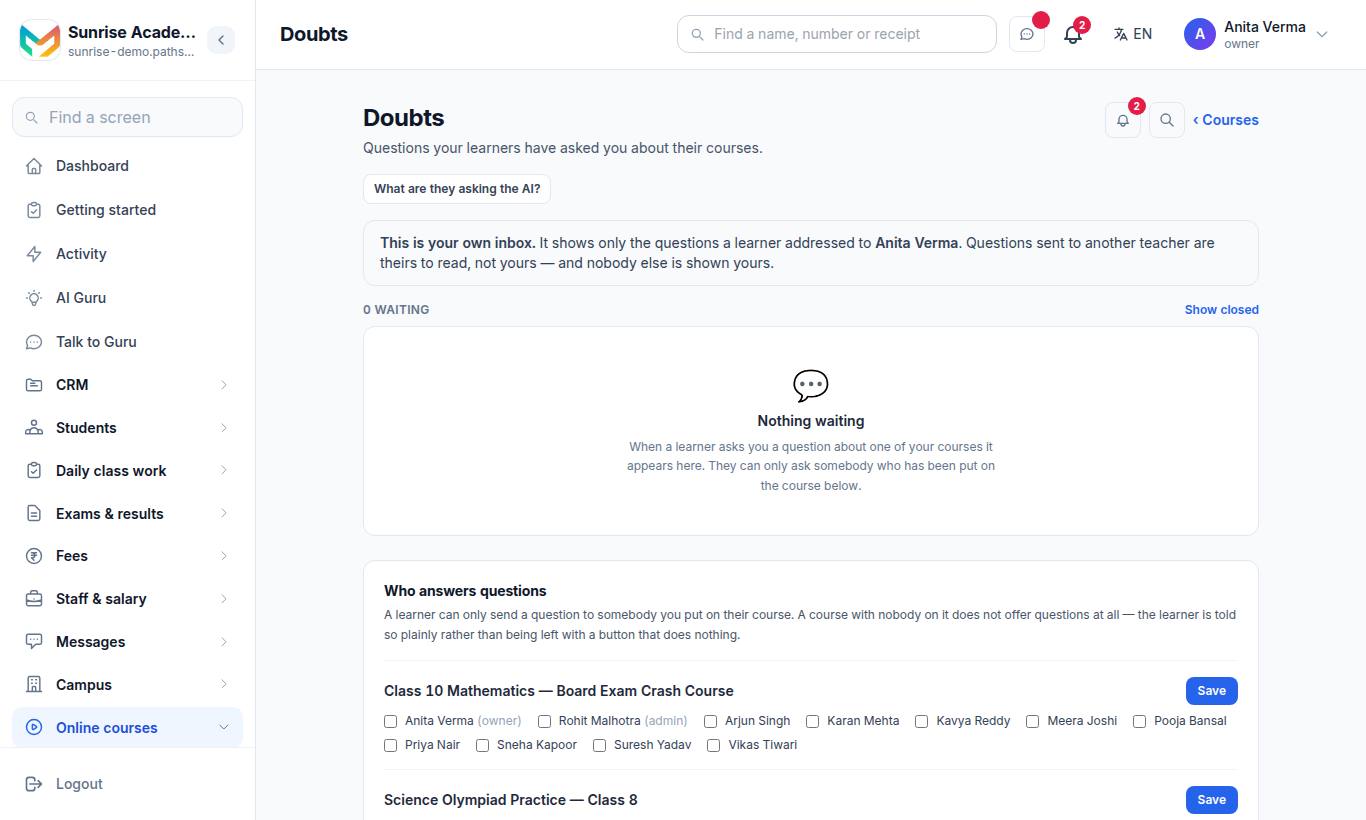
"Questions your learners have asked you about their courses." The sidebar row shows a red number when questions are waiting.
- Open a question. Each is marked Waiting, Answered or Closed. Use View unanswered, Search questions and Course to filter.
- Type under Your answer — "Answer it the way you would in class."
- Press Send answer.
- When it is done, press Close this question. Closing is final — the learner keeps your answer and can ask a new question.
In the app the Doubts tab on the bottom bar works the same way.
#What learners see
On the web this is Ask a question at ~/learn/ask.
- Choose Which course and Which topic (or Not about one topic). "Picking a topic lets the AI answer from that topic's own material."
- Under Who should answer? choose:
- Ask your teacher — "Your teacher will read this." Pick Which teacher, type In a few words, what is it about? and Your question, attach a picture or PDF if needed, and press Send to my teacher.
- Ask the AI — "Nobody reads this." The AI answers from the topic.
- Replies appear under Your questions with New reply, Replied, Waiting or Closed.
Learners of in-person classes can ask their teacher too.
#What are learners stuck on?
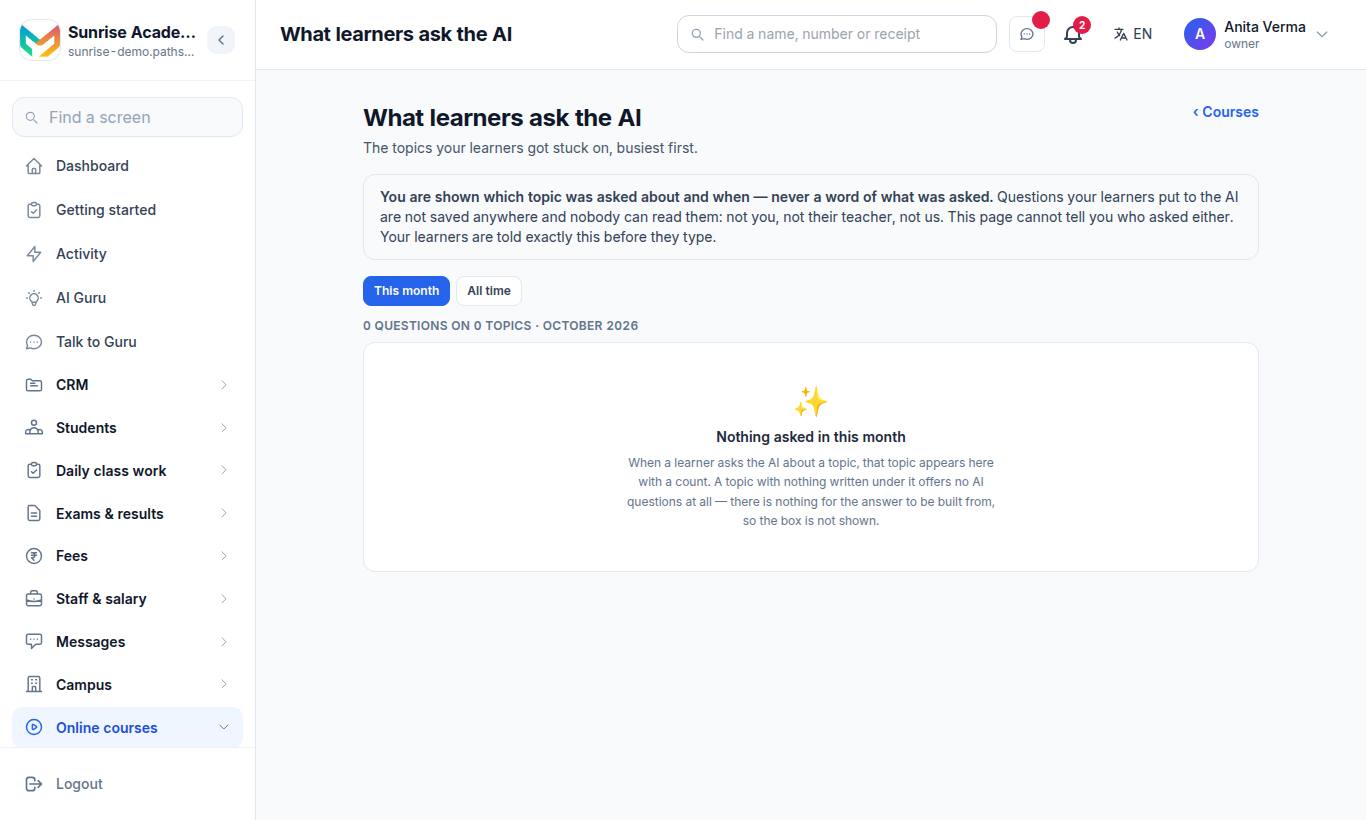
The What learners ask the AI page lists "The topics your learners got stuck on, busiest first", for This month or All time. You see which topic was asked about and when — never a word of what was asked.
A topic near the top is usually worth re-recording, adding notes to, or covering again in a live class. A topic with nothing written under it offers no AI questions at all. If the month's AI allowance is used up, the count says how many were not answered.
#Who can use this?
| Who | Can |
|---|---|
| Owner, Admin | Choose who answers; answer questions sent to them; see every course's AI topics. |
| Teacher | Answer questions sent to them; see AI topics for the courses they answer for. |
| Learners | Ask about courses they hold. |
| Plan | Every plan. |
#Questions people ask
Who can a learner send a doubt to?
Only somebody you put on their course under "Who answers questions". A course with nobody on it does not offer questions at all, and the learner is told so plainly.
Can other teachers read my doubts?
No. The inbox shows each teacher only the questions addressed to them.
Can I read what learners asked the AI?
No. Questions learners put to the AI are not saved and nobody can read them — not you, not their teacher, not MJX. You only see which topics were asked about and how often.
Can a learner attach a photo?
Yes. In the app a learner can attach a picture or a PDF to a doubt.
Is there a limit on open doubts?
Yes, a learner can have a set number of questions open at a time. Closing an answered question frees a place.