
WhatsApp broadcasts — send one template to a whole class or list
Send one approved WhatsApp template to parents of a class, your enquiry list or chosen numbers, now or later, with a delivery report per person.
A broadcast sends one approved template to many people at once — now or at a time you pick. In Pathshala, anyone who has opted out is skipped automatically, and the report tells you exactly who got it, who read it and who did not.
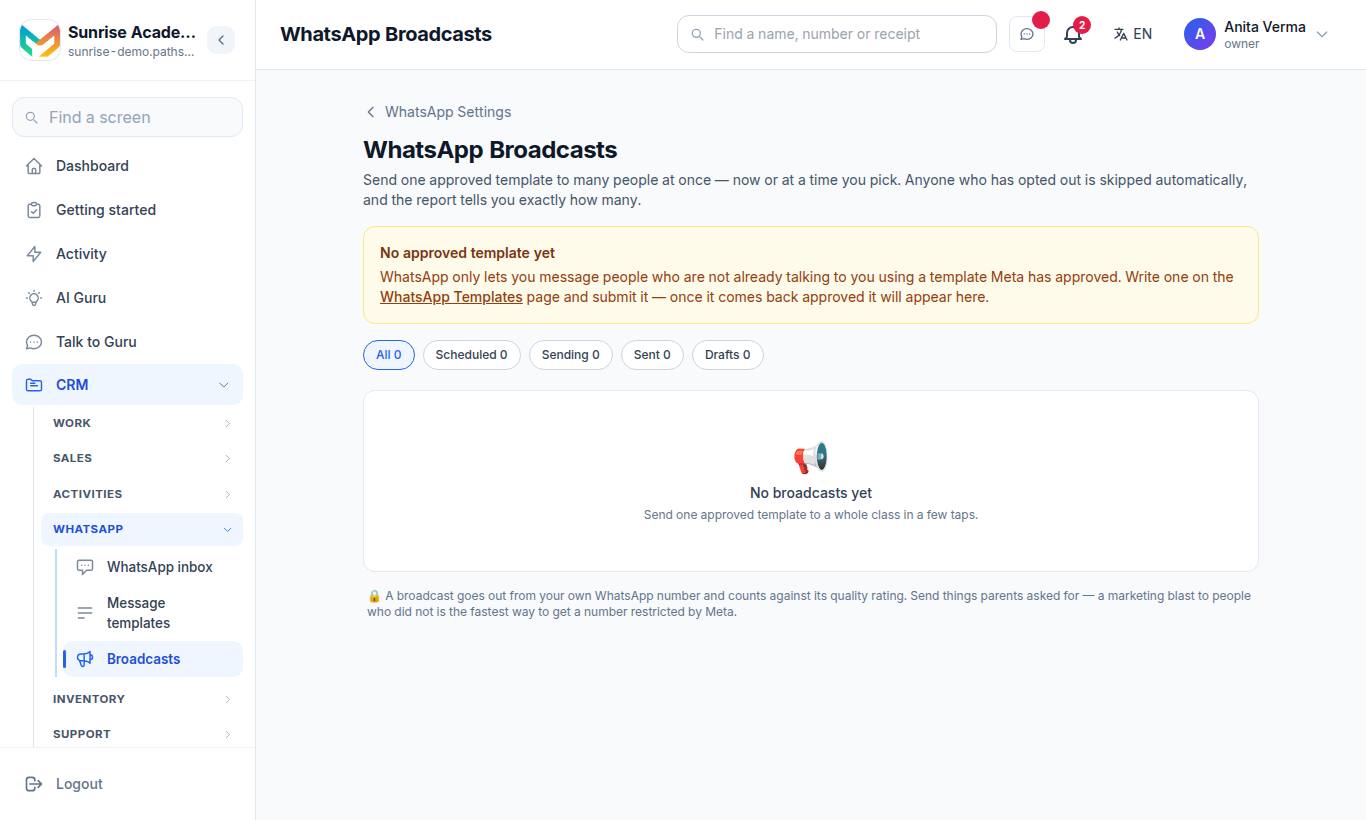
The WhatsApp Broadcasts page lives at /whatsapp/broadcasts. It needs a plan with Broadcasts (WhatsApp Automation Basic or Pro), your own WhatsApp number, and at least one Approved template — if you have none, the page says No approved template yet and links to WhatsApp Templates.
#How to send a broadcast
- Press New broadcast.
- What is this? — a name only you see, for example "July fee reminder". It is how you find the report later.
- Message template — choose an approved template.
- Fill in the blanks — for each variable in the template, pick a field (such as the student's or parent's name) so each person gets their own value, or choose Type it myself for the same text for everyone.
- Who gets it? — choose one:
| Option | Narrow it down | Number needed |
|---|---|---|
| Parents of students | All classes or one class; Current students only or Everyone, including students who left | Own |
| Enquiry contacts | Every enquiry or one enquiry status (with its count) | Own |
| People I choose (my contacts or typed) | Search your phone contacts by name or number, or paste numbers — commas, spaces or new lines all work | Own |
Pathshala counts the audience as you choose and shows notes such as how many are opted out or have no usable number.
- When? — Send now or Pick a time (choose a date and time).
- Press Send, or Save as draft to send later.
#Your phone contacts
The People I choose box suggests people from your own phone. To fill it, open the MJX app on your phone and allow contacts. Until then it says "No contacts synced yet." Only your own synced contacts are shown, never another staff member's.
#What the list shows
Filter with All, Scheduled, Sending, Sent and Drafts. Each broadcast shows its status — Draft, Scheduled, Sending, Sent or Cancelled — and buttons:
| Button | When | What it does |
|---|---|---|
| Send now | Draft | Releases it |
| Stop | Scheduled or sending | Stops the rest |
| Details | Any | Opens the report |
| Delete | Draft, Sent or Cancelled | Deletes the broadcast and its report |
#How to read the report
Press Details. The report shows tiles for sent, delivered, read, not delivered and failed, the template and language used, and when it was scheduled, started and finished.
- Sent means WhatsApp accepted the message.
- Delivered means it reached the phone. Delivery receipts arrive over the next few minutes.
- Under Recipients, filter the list and see each person's status and any error.
- Contacts with no usable mobile number are never queued. People who opted out are listed on the Opt-Outs page.
#Try these again?
If some messages failed, the report groups them by reason and offers Try these again?. Only those numbers are messaged again — nobody who already received it gets a second copy. Common reasons:
| Code | Meaning | Worth retrying? |
|---|---|---|
| 131026 | This number cannot receive WhatsApp messages | Almost certainly fails again |
| 131047 | The 24-hour window had closed | A template re-send is the right fix |
| 131049 / 130472 | Meta held it back to protect the recipient's experience | A later re-send may get through |
#Who can use broadcasts?
- Any staff member can open the page and read reports ("did the fee notice go out?").
- Owner or admin can create, send, stop, retry and delete (create, send and retry need your own number).
In MJX CRM you can also broadcast to leads from the CRM — on your own number only — see the CRM docs.
Related: Templates · Opt-outs · WhatsApp bill
#Questions people ask
Can I broadcast without a template?
No. WhatsApp only lets you message people who are not already talking to you with a template Meta has approved. Create one on the Templates page first.
Are people who replied STOP skipped?
Yes, always. They are skipped automatically and counted separately in the report — they are never messaged.
Can I send a broadcast on the shared MJX number?
No. Broadcasts need your own WhatsApp number. Connect it from the Broadcasts page with Connect your number. Your automatic messages (fee reminders, sign-in codes, alerts) keep going on the shared number.
Can I stop a broadcast?
Yes. Press Stop to stop the rest. Messages already sent cannot be taken back.
Does a broadcast cost money?
Each delivered message is a template message and is charged on your WhatsApp bill, at the rate for the template's category, plus 18% GST — unless MJX pays for that kind of message (the bill page says which).